How I Built an Automated Weekly Reading Digest of My Gmail Inbox
I subscribe to a lot of email newsletters and email myself links to interesting articles, great posts from artists, and other bits that I always intend to read later. Email is a crummy medium to use as a reading list (and RSS isn't widely used anymore) but we can overcome some of that with a little automation script and Gmail.
I keep a few top level categories/folders in my Gmail: ToDo, Later, Waiting, and Reading. The latter — Reading — is where I drop all of those newsletters, saved links, interesting pages, etc. Many of which are automatically sent there with Gmail filters. The trouble is that it's easy for me to forget to review my Reading folder until it piles up.
I thought it would be handy to be sent an email digest of links every Friday or Saturday when I have the bandwidth and headspace to read. It should be just a list of links with clear titles/headlines. And it can be done fairly easily, for free, with Gmail and a Google Apps Script.
The Workflow
Capture: When a newsletter or other email I'd like to read later arrives, I apply a specific label (in my case,
4. READING). I can do this manually, but also have a Gmail filter to do it automatically for most subscriptions.Process: Once a week, a script runs in the background. It grabs all emails with that label.
Deliver: It compiles links to those emails into a single "Weekly Digest" email and sends it to me.
Clean Up: It removes the label and archives the original threads, so that my Reading label/folder doesn't pile up.
The Code
Here is the script. It’s short, efficient, and runs entirely on Google Cloud - which you have free access to if you have Gmail.
How It Works
1. The Setup
We define our constants at the top. This makes the code reusable. You just swap out DIGEST_LABEL for whatever label you use in Gmail, and update the RECIPIENT_EMAIL.
2. The Fetch
The script uses GmailApp.getUserLabelByName to find our target folder. I added a limit of 50 threads (label.getThreads(0, 50)) to ensure the script doesn't time out if I've had a particularly heavy month of subscriptions.
3. The Link
This is the most important part. Inside the loop, we use thread.getPermalink(). Instead of copying the full text of the newsletter into the digest (which would make the digest huge and messy), we just grab a direct link to the email thread within Gmail. When I click "read" in my digest, it opens that specific original email instantly. Did you know you can link to your individual emails in Gmail? I didn't until I started this project.
4. The Cleanup
Once the digest is sent, the script performs housekeeping:
This automatically moves the items out of my "Reading" folder and into the archive. I don't have to touch them twice.
How to Set This Up Yourself
This assumes you have a Gmail account.
Go to script.google.com.
Click New Project.
Paste the code above into the editor (rename
myFunctionto somethign likecreateAndSendDigest).Update the configuration variables with your email and label name.
Save and Run the script once to authorize permissions.
Click on the Triggers icon (the alarm clock) on the left sidebar.
Add a new trigger to run
createAndSendDigestbased on time. I use things like "Weekly" on "Friday" at "5pm").
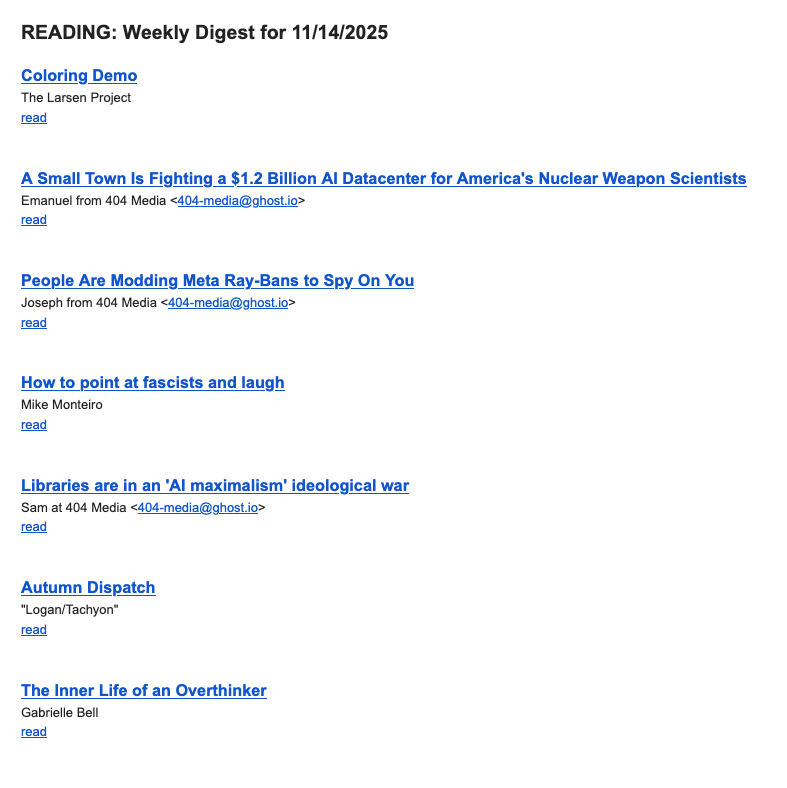
Now, I get a single email on Friday afternoon with a clean digest of everything I want to read. Here's how my automated email looks (and a peek into the kind of things I save to read later).